How Do I Activate the Focused Inbox feature in Outlook?
Summary
A short guide demonstrating how to activate the Focused Inbox feature in Outlook. Includes instructions on how to fix a problem in which the Focused inbox button may be missing in Outlook 2016 for Mac.
Body
Outlook Application for Windows
-
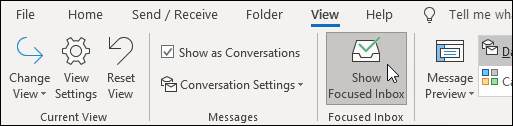
In Outlook, select the View tab.
-
Select Show Focused Inbox.
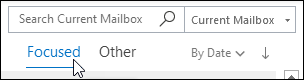
The Focused and Other tabs will appear at the top of your mailbox. You’ll be informed about email flowing to Other, and you can switch between tabs any time to take a quick look.
Outlook on the Web
-
Open Outlook.
-
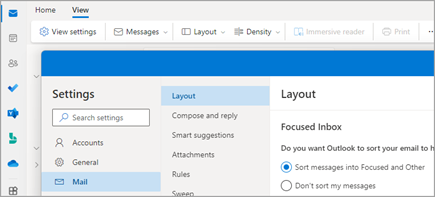
Select View > View Settings  .
.
-
In Mail > Layout, select the toggle next to Sort messages into Focused and Other.
The Focused and Other tabs display at the top of your mailbox. You’ll be informed about email flowing to Other, and you can switch between tabs any time to take a quick look.
Outlook Application for Mac
-
Open Outlook for Mac.
-
On the Organize tab, select Focused inbox.
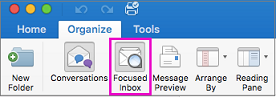
The Focused and Other tabs will appear at the top of your inbox. You’ll be informed about email flowing to Other, and you can switch between tabs any time to take a quick look.
Details
Details
Article ID:
52599
Created
Wed 4/25/18 1:05 PM
Modified
Wed 3/18/26 9:06 AM